
Phone Data Transfer Without Losing What Matters
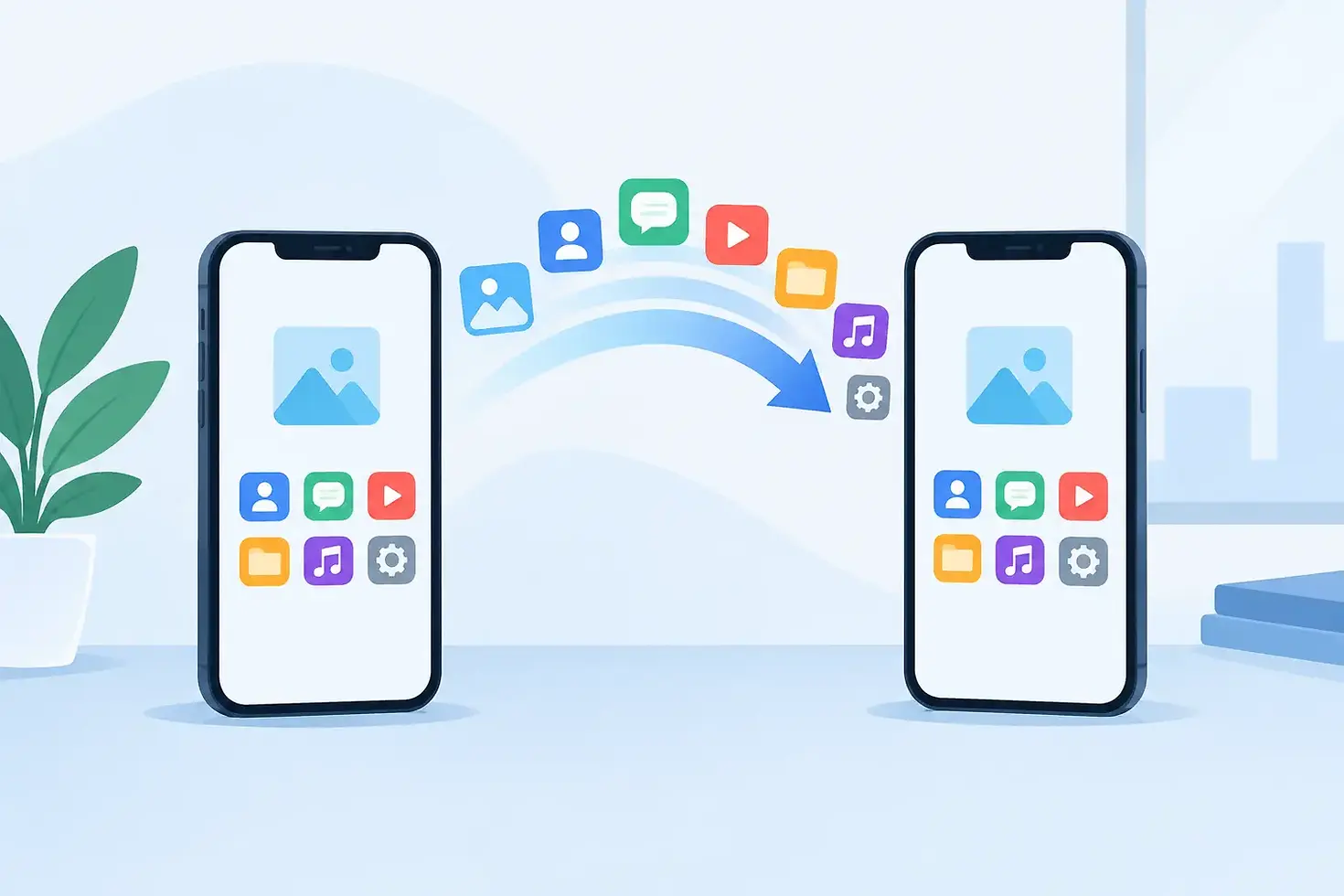
A new phone should feel like an upgrade, not a stressful search for missing photos, banking access or a work contact you need before lunch. Phone data transfer is the process of moving the important parts of your old mobile to your replacement device, but a rushed transfer can leave gaps that are hard to spot until you need something.
The good news is that most transfers work well when the old phone is working, charged and backed up. The key is knowing what transfers automatically, what needs extra attention, and when a damaged device needs repair first.
What phone data transfer usually moves
When you use Apple’s or Android’s built-in transfer setup, it can bring across far more than contacts. Depending on your phone, account settings and backup, it may transfer photos, videos, text messages, call history, apps, calendars, notes, saved Wi-Fi networks and many device settings.
This is why keeping your old mobile nearby during setup matters. Direct phone-to-phone transfers are often quicker and more complete than restoring only from an older cloud backup. Keep both devices connected to Wi-Fi, plugged into power where possible, and close together until the process says it is finished.
Your apps may appear quickly, while their data continues downloading in the background. Give the new phone time before assuming something has gone missing. Large photo libraries, WhatsApp histories and files saved to cloud storage can take hours to fully appear, especially on a busy home connection.
The data that needs a closer look
Not every item follows the same path. Apps that hold sensitive information usually ask you to sign in again on the new device. That is normal security, not a sign the transfer has failed.
Banking, government and work apps
Most banking apps require you to verify your identity on the new phone. Have your card, customer number, password and access to your registered email or mobile number ready. Do not erase the old device until banking, myGov, authentication and work apps are working properly.
If you use an authenticator app for work, school or email, treat it as a priority. Some authenticator apps restore through an account backup, while others require a separate export or re-registration. Losing access can mean waiting for an IT team or account provider to reset security on your behalf.
Messages and chat history
Standard texts commonly transfer with a device backup or direct setup. Chat apps are different. WhatsApp, for example, relies on its own chat backup or transfer method, and the result depends on whether you are moving between iPhone and Android or staying on the same platform.
Before changing phones, open the chat app on the old device and confirm the latest backup date. Check that there is enough cloud storage available. This extra minute is worth it if years of family photos, school messages or customer conversations are in your chats.
Photos, downloads and files
Photos may be stored in several places: the device gallery, iCloud Photos, Google Photos, an SD card, Files, Downloads, OneDrive or another app. A photo showing in a gallery does not always mean it is backed up.
Open your photo backup service and check that it has finished syncing. Then look through Downloads and Files for documents that may only exist locally, such as invoices, study material, PDFs, voice recordings and scanned forms. If your old phone has a microSD card, remove it only after switching the phone off and check whether your new model supports it.
Phone data transfer from iPhone to iPhone
For an iPhone replacement, Quick Start is usually the simplest option. Turn on the new iPhone beside the old one and follow the on-screen prompts. You can transfer directly from the old phone or restore from iCloud.
A direct transfer is a good choice when your old iPhone is functioning and you have time to keep both phones together. An iCloud restore is useful if the old phone is unavailable but you have a recent, complete backup. Either way, make sure the old phone is signed into the correct Apple Account and connected to Wi-Fi before you begin.
You will still need to re-add some cards to Apple Wallet, sign in to apps and verify account security. If you use an eSIM, follow your mobile provider’s instructions to move it. Do not assume your number has transferred just because the new phone is connected to Wi-Fi.
Phone data transfer from Android to Android
Android setup generally gives you the option to copy data from your old device using a cable or Wi-Fi. A cable transfer can be faster and more reliable for a large amount of data, provided you have the right cable and both ports are in good condition.
Sign in to the same Google account used on the old phone. This allows contacts, calendar entries, app lists and cloud-backed photos to sync. Samsung, Google Pixel, Oppo and other Android brands may include their own transfer tools too. These can be useful, but the basic setup process is usually enough for most people.
If your new Android phone does not show certain photos or documents straight away, check the relevant app rather than relying only on the gallery. Files may be waiting to sync from Google Drive, Google Photos or another cloud account.
Moving between iPhone and Android
Changing operating systems takes more preparation. Contacts, photos and many common apps can move across, but some settings, paid app purchases, messages and app-specific data may not transfer in the same way.
Start with the transfer tool offered during setup on the new phone. Follow each prompt carefully, especially when it asks about messages, photos, WhatsApp or cable connections. Do not skip a screen simply because you are in a hurry - some transfer options only appear during the first setup.
Before the move, make a separate backup of anything you cannot replace. That could include passwords stored outside a password manager, voice memos, music files, downloaded documents or notes held in a particular app. Switching from iPhone to Android, or the other way around, is very manageable, but it is not always a perfect copy of your old device.
Check these things before wiping your old phone
The biggest mistake is factory-resetting the old phone as soon as the new one turns on. Keep it for at least a few days, or until you have checked the essentials.
Confirm that you can make and receive calls, send texts and use mobile data. Open your email, banking app, authenticator, messaging apps and photo library. Check a few older photos, not only the latest ones. If you use a password manager, make sure you can sign in and access your saved logins.
Also check that your contacts are present and that important notes, reminders and calendar appointments have arrived. Make one test call over mobile data rather than Wi-Fi, especially if you have moved an eSIM. These checks take less time than recovering a missed transfer later.
Once you are confident everything is there, sign out of accounts where required, remove your SIM or eSIM, turn off Find My or equivalent device tracking, then erase the old phone before selling, recycling or giving it to someone else.
When a damaged phone makes transfer harder
A cracked screen does not always stop a transfer, but it can if you cannot unlock the phone or confirm security prompts. A flat battery, damaged charging port, liquid damage or a display that no longer responds can create the same problem.
The right solution depends on the fault. Sometimes a temporary screen or charging repair is enough to make the old phone accessible so data can be backed up or moved. If the phone still powers on but the screen is black, data recovery may still be possible, but it depends on the model, damage and whether the device was previously backed up.
Do not keep charging a water-damaged mobile in the hope it will come back to life. Liquid and power are a poor combination, and further charging can make recovery less likely. Get the device assessed promptly instead.
For Sydney customers dealing with a damaged phone before an upgrade, Gadget Xperts can assess the fault and explain the practical options. A straightforward repair may be the fastest way to regain access to the photos, messages and accounts sitting on the old device.
Make the next transfer easier
Set up automatic photo backup, keep your phone software current and make sure you know the password for your Apple Account or Google account. Store recovery codes for key accounts somewhere safe that is not only on your phone.
When it is time to change devices, start the transfer while you still have a working old phone, a reliable Wi-Fi connection and a little patience. Your new mobile should carry your life forward, not leave parts of it behind.


Comments